Beware of fake job offers and payment requests. We only use official email IDs and never conduct interviews on messaging apps.Beware of fake job offers and payment requests. We only use official email IDs and never conduct interviews on messaging apps.
Summary:Google Analytics 4 (GA4) is a powerful modern web analytics tool with more advanced features than its predecessor, Universal Analytics (UA). GA4 focuses on event-based tracking, providing detailed insights into user interactions across websites and apps. This guide will help you set up your GA4 account and use it to monitor website performance.
Key takeaways:-
Google Analytics 4 (GA4) transitions from session-based to event-based tracking, capturing detailed user interactions across websites and apps to provide more granular insights.
GA4 enables seamless tracking across multiple platforms, providing a unified view of user behavior across websites and mobile applications.
It has built-in privacy features that help you comply with global regulations like GDPR and CCPA, simplifying data protection management.
In the present day, it is very important to know how your website performs if you want it to grow. Google Analytics 4 (GA4) is the latest version of Google’s web analytics platform, which comes with advanced tracking features and insights necessary for enterprises and large websites.
This guide offers a comprehensive step-by-step walkthrough on how to have a Google Analytics 4 setup in such a way that you will be able to make the best use of all its potentialities in your online presence.
Table of Contents
What Is GA4?
Google Analytics 4 (GA4) is the latest iteration of Google Analytics, offering a comprehensive view of user interactions across both websites and apps. While Universal Analytics (UA) mainly focuses on page views, GA4 setup is based on events, thereby allowing data sorters that are more detailed.
There are several new key features introduced in GA4.
Discover What Your Customers Search ForDiscover What Your Customers Search For
Get insights on evolving customer behaviour, high volume keywords, search trends, and more.
This means that every single interaction between users is recorded in event-transaction forms. It also means understanding people better. As such, this would help businesses optimize their marketing strategies and customer experience in general.
Cross-platform tracking
With this feature, through single display queries and reports within one interface, one can track users across mobile apps and website platforms without interruption or disconnection. It enables different channels of engagement to be brought together into one place where they are seen holistically.
Improved privacy control
To provide GDPR and CCPA compliance out-of-the-box functionality, GA4 has enhanced privacy controls that go beyond those provided within UA. Conforming with global privacy regulations regarding customer information collection will save you from getting penalized due violating these legislations globally.
Machine learning insights
Incorporating predictive metrics into a reporting suite such as purchase probability or churn probability assesses the lifetime value for AI-driven growth marketers who wish not just to attract but retain customers thereby truly optimizing their ad campaigns using machine learning techniques through stakeholder analysis.
These characteristics define GA4 as a potent application, especially for large companies that want to understand more about the actions of their users and thus optimize their digital strategies.
How GA4 Tracking Differs from UA
The transition from Universal Analytics (UA) to GA4 setup represents a significant shift in how data is collected and analyzed. Understanding these differences is crucial for a smooth migration and maximizing the benefits of GA4.
1. Data Collection
UA: Emphasis is put on sessions and page views in this case whereby each session consists of several hits and interactions.
GA4: These are driven by events that capture every interaction within the system. This approach provides finer data gradations which allow us to better comprehend user journeys.
2. Measurement Model
UA: Based on sessions and user-based GA4 metrics, which can sometimes be limiting in understanding the full scope of user interactions. Based on sessions and user-based metrics, which can sometimes be limiting in understanding the full scope of user interactions.
GA4: This combines data both from the web and app, using event parameters. This allows for a flexible analysis that is detailed on how a user behaves.
3. Reporting Interface
UA: It offers fixed reports to customers, which sometimes makes it impossible for users to break their results into separate points of interest, including Google smart goals.
GA4: The reporting interface is customizable with flexible reports and dashboards. Hence, there can be reporting around specific business goals at a more granular level.
4. Privacy and Compliance
UA: GDPR and CCPA configurations need to be done separately because they are complicated processes.
GA4: For easier compliance with global regulations in data collection processes, built-in privacy controls are included.
5. Machine Learning
UA: Limited machine learning capabilities, which can limit the ability to gain predictive insights.
GA4: Advanced machine learning tools deliver forecasts and automated insights for data analysis.It includes features such as automatic alerts for significant changes in data patterns.
How to set up Google Analytics 4?
Some steps are needed to configure your Google Analytics 4 setup so that you can start collecting accurate data while integrating it into your existing systems. Here’s what you need, step-by-step:
Step 1: Create a GA4 Property
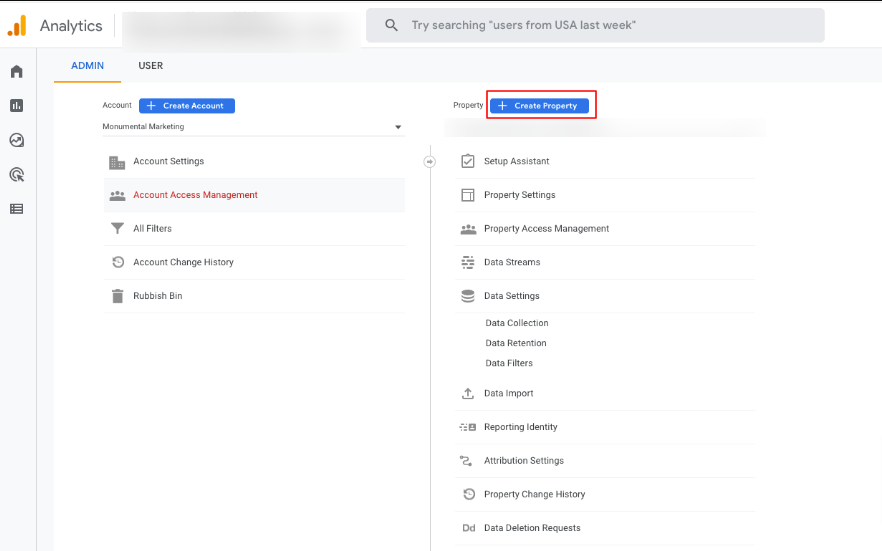
To create a GA4 setup property log into Google Analytics then go to the Admin area,
Create Property by Clicking on “Create Property” and selecting GA4 Setup,
Look over Basic Settings (provide the name of your property/type of currency/and select time zone) and click the Create button located at the bottom right corner of the page.This will establish your new GA 4 property successfully created.
Step 2: Configure Data Streams
Select the platform you want to track, such as Web, iOS or Android
Indicate your website URL and/or app details
Enable additional tracking features like scroll tracking, outbound clicks, and site search.
Step 3: Install GA4 Tracking Code
There are different ways of installing the GA4 tracking code depending on how your website is configured.
Install GA4 with Google Tag Manager
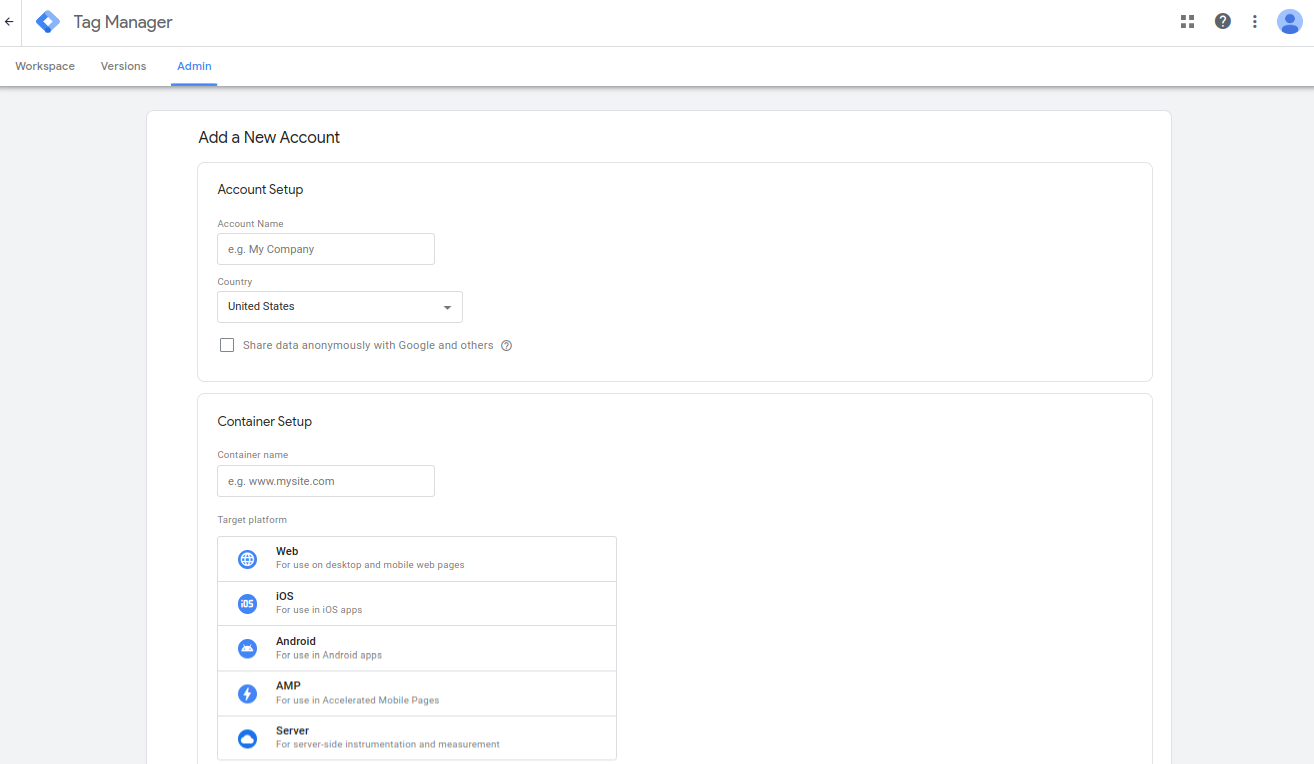
Log in to Google Tag Manager: Begin by logging into your Google Tag Manager account. Navigate to your container where you manage your tags and create a new tag.
Choose GA4 Configuration: Choose “GA4 Configuration” when creating your new tag. This will configure the tag specifically for GA4 tracking.
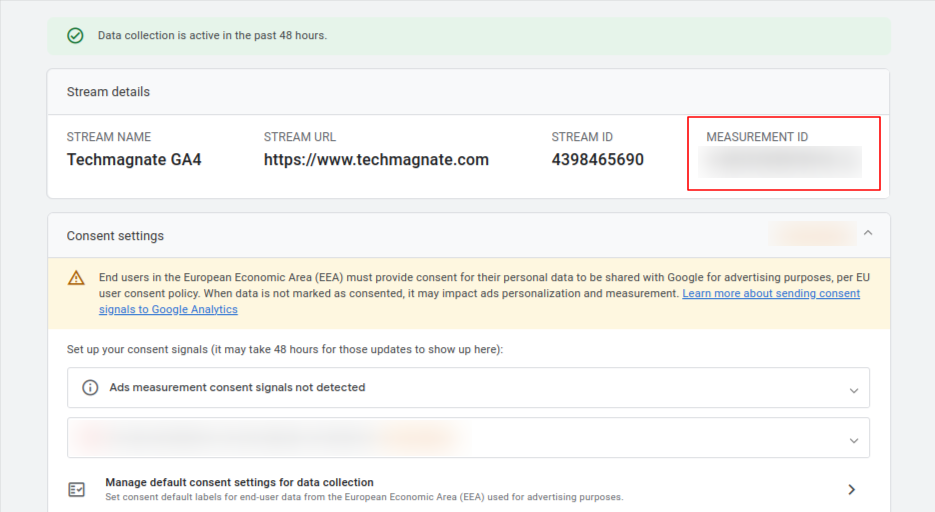
Key in Measurement ID: You’ll need to obtain the GA4 Measurement ID for the particular data stream and enter it in the relevant field within the tag configuration settings.
Trigger Tag: Make sure the trigger is set to “All pages” to track activity on every page of your site, ensuring the tag fires with each page load and helping you fix broken links in Google Analytics (GA4) for accurate tracking.
Publish Container: When you have set up the desired tag and trigger, save it and publish this container. This will provide GA4 tracking on the website.
Installing GA4 via an Integration
Select a CMS/Platform: Several popular content management systems (CMS) and platforms such as WordPress or Shopify would have plugins or built-in integrations for GA4. Select which integration method works best with your platform.
Follow Platform Instructions: Each platform might have its process of adding your Measurement ID of GA4. Consult the documentation of each platform for more details about this process.
Confirm Installation: After integrating, confirm if it has been done accordingly. Do this by ensuring that real-time data is being captured in your dashboard to show site activities taking place there.
Install GA4 Manually
Copy Global Site Tag of GA4 : gtag.js code available in their Data Stream settings in the GA4 console is needed from you. To enable tracking using Google Analytics 4 setup you need this code
Paste Code: Place copied code inside an element of HTML on a webpage. The placement ensures the correct loading and execution of tags.
Save Changes: Save changes made after pasting codes into an HTML file. Assess if this code has been properly integrated into functioning real-time data captured on your Ga- dashboard itself by scanning through its real-time statistics.
Tracking Events with GA4
By utilizing event count tracking in GA4, you can monitor user actions beyond simple page views. This serves as a helpful guide for anyone looking to configure events effortlessly.
Define the events you want to track first of all. Think about your site’s most important interactions such as button clicks or video plays; ones that matter most to your analysis. Go to the Events section on GA4 and click the “Create Event” button which will help you define such custom events.
Then, GTM comes into play when implementing event tracking. For every event that you would like to monitor, create new tags and then set up triggers specifying conditions under which they should fire like clicking certain buttons. Save and publish the container once you’ve done setting up tags and triggers to turn on tracking.
Go to the Reports section of Events in GA4 in order to study the data on this subject. Its purpose is to analyze a user’s behavior or interaction pattern and determine how users are engaging with websites.
Smart Features that Stand Out in GA4 for Corporations
Advanced Features: GA4 offers cross-domain tracking for seamless user monitoring across multiple domains.
Setup: Add domains in data stream settings and use DebugView for precise tracking.
Custom Reports: Create tailored reports and dashboards with GA4 Explorer.
Data Sharing: Share custom insights with your team using GA4’s reporting tools.
Benefits of Google Analytics 4 for Businesses
The new update from GA4 has brought in web analytics. This tool provides businesses with insights to understand the target audience and optimize strategies accordingly. Here are some key benefits of using GA4 for your website:
1. Enhanced Cross-Platform Tracking
GA4 enables tracking of user interactions across devices and platforms. Businesses can get a unified view of the customer journeys which will eventually help them understand user behavior.
2. Advanced Privacy Controls
GA4 includes robust privacy features that comply with global regulations like GDPR and CCPA. Its customizable settings allow businesses to get anonymous data to ensure user privacy while gathering actionable insights.
3. Predictive Metrics
GA4 integrates AI to provide predictive analytics. Insights like purchase probability let businesses proactively target high-value customers and optimize marketing campaigns.
4. Customizable Reports
With GA4, businesses can create reports tailored to their goals. Using the google analytics dashboard, they can track real-time data, monitor engagement metrics, and generate insights that help optimize marketing strategies and improve overall website performance.
Example Use Case:GA4’s predictive analytics can help a retail business identify customers likely to abandon their carts. By targeting these users with personalized offers, the business can increase conversions and revenue.
Common Mistakes to Avoid in GA4 Setup
While setting up GA4 avoid these common mistakes:
1. Skipping Debugging
Debugging ensures your GA4 setup tracks data accurately. Neglecting DebugView can lead to missing or inaccurate event data.
2. Overlooking Privacy Settings
Failing to configure privacy settings can result in non-compliance with regulations like GDPR. Use GA4’s built-in privacy features to anonymize sensitive data.
3. Ignoring Data Streams
Setting up separate data streams for web and app platforms is essential. Overlooking this can cause fragmented insights.
4. Not Setting Up Conversion Events Correctly
Conversion events help track business goals like purchases or sign-ups. Incorrect setup can lead to missed performance tracking.
5. Overcomplicating the Setup Process
Adding too many tracking events or metrics can clutter dashboards, making it harder to focus on what matters. Keep it simple and goal-oriented.
6. Ignoring Review Setup
Websites and apps evolve. Regularly review your GA4 setup to ensure it aligns with your current business objectives.
7. Delaying Transition from Universal Analytics
Not switching to GA4 at the earliest can lead to data loss, as Universal Analytics stops collecting data.
Take The Next Step With Us
Moving from Universal Analytics (UA) to GA4 necessitates setting up another property, configuring data streams, and installing the tracking code. If you’re looking for expert guidance to make this transition smoother, as a GA4 Consulting agency, Techmagnate specializes in helping businesses implement GA4 effectively. Our expert team will guide you through the setup, ensuring you fully leverage GA4’s advanced features to optimize your website performance. Contact us today to learn more about how we can help you make the most of GA4.
Sarvesh Bagla is an enterprise SEO expert and industry leader who has driven transformational digital growth for India’s top brands across the BFSI, Healthcare, Automotive, and ECommerce industries. As the Founder and CEO of Techmagnate, he leads large-scale organic search strategies and performance marketing campaigns for businesses looking to succeed in today’s AI-driven search landscape.
A strong advocate for thought leadership, Sarvesh is deeply involved in SEO evangelism and regularly contributes to industry discussions through LinkedIn, webinars, and CMO roundtables. His focus today is on helping brands prepare for an AI-first SEO future (AEO, GEO) and strategies for Large Language Models (LLMs) at the core.
Get the most valuable search related insights about leading brands, trending keywords, search volumes, fastest growing categories, city-level insights and much more!
It has come to our notice that fraudulent job offers are being circulated on the internet through messaging apps like WhatsApp and Telegram, which falsely claim to be from Techmagnate. We take this matter seriously and would like to caution all candidates to be wary of such postings.
Please Note That –
We do not charge any fees/security deposit/payment from candidates, irrespective of the professional experience they hold, for job applications or interviews
Official communication channels include our website and verified social media accounts, primarily LinkedIn.
Kindly double-check the domain name – @techmagnate.com – in the email address
We follow a transparent and ethical approach for hiring/onboarding supported by proper documentation.
Ensure that you only apply through verified channels to avoid being scammed. We also recommend that you exercise caution when sharing personal information or financial details with any job posting or recruitment agencies claiming to represent us.
We want to ensure that potential candidates interested in joining Techmagnate have a safe and positive experience.
If you find that someone that fits the description above has reached out to you, please notify us immediately at jobs@techmagnate.com.
 Important Alert:
 Important Alert:


















 6th Feb | Invite-only


