Beware of fake job offers and payment requests. We only use official email IDs and never conduct interviews on messaging apps.Beware of fake job offers and payment requests. We only use official email IDs and never conduct interviews on messaging apps.
Summary: Event count in Google Analytics 4 (GA4) measures how often users perform specific actions on your website or app, from clicks and scrolls to form submissions and purchases. Because GA4 is fully event-based, event count is a core metric for analyzing engagement, conversion behavior, and campaign effectiveness. This guide explains what event count means, why it matters for performance analysis, and how to set up accurate event tracking using GA4 and Google Tag Manager.
Key takeaways:-
An event count is the number of times a tracked action is performed on your website or app.
Google Analytics event count is essential for tracking and quantifying user engagement with a business online.
By setting up event tracking on your website, you can easily measure event count or Unassigned Traffic in Google Analytics using Google Analytics
Achieving a higher number of events in Google Analytics can be beneficial in understanding user behaviour and making informed decisions, especially when analyzing Direct Traffic sources.
While setting up event tracking, it is important to avoid common pitfalls that can hinder accurate data collection.
Table of Contents
What Is Event Count in Google Analytics 4?
Event count in Google Analytics 4 refers to the total number of times a specific tracked interaction occurs on your website or application during a selected time period.
GA4 treats every interaction as an event – including:
Page views
Scrolls
Button clicks
Video plays
Form submissions
Purchases
Downloads
Unlike Universal Analytics, where events were secondary, events are the foundation of GA4 tracking. Event count helps you understand which actions users perform most often and which interactions drive business outcomes.
Why is Google Analytics Event Count Important?
Google Analytics event count is important because it tracks user interactions like clicks, form submissions, and downloads. This data helps businesses understand user behavior, measure engagement, and identify high-performing content or features. It also guides decision-making for marketing strategies, user experience improvements, and conversion rate optimization.
Helps Analyze User Behavior – Event count data allows businesses to understand how users interact with their website or app.
Quantifies User Interactions – It provides measurable insights into actions like form submissions, link clicks, video plays, and more.
Improves User Experience – By identifying interaction patterns, businesses can optimize site elements for better usability.
Supports Campaign Optimization – High event counts signal which campaigns or touchpoints are most effective at engaging users.
Informs Strategic Decisions – Event data helps allocate resources to the most impactful channels and activities.
Indicates Conversion Potential – More events often mean more opportunities for conversion, guiding sales and marketing efforts.
Builds a Strong Analytics Foundation – Event count is a core metric for tracking engagement and long-term performance across digital platforms.
Discover What Your Customers Search ForDiscover What Your Customers Search For
Get insights on evolving customer behaviour, high volume keywords, search trends, and more.
Setting up event count in Google Analytics 4 is essential to track user interactions like clicks, downloads, or form submissions. GA4 uses an event-based model, making it flexible and powerful for measuring engagement and conversions. Here’s how to set it up:
GA4 automatically tracks events like page views, scrolls, outbound clicks, and more.
Review these to avoid duplicating effort.
Step 4: Create a Custom Event (If Needed)
Click “Create event” > “Create”
Enter a name (e.g., form_submit_event)
Set matching conditions (e.g., event_name = “click”, and click_text = “Submit”)
Step 5: Use Google Tag Manager (Optional for Custom Events)
Set up a trigger (e.g., button click) and a tag (GA4 Event Tag).
Assign parameters and link it to your GA4 configuration.
Step 6: Verify Events
Go to Reports > Real time to test and confirm the event is being captured correctly.
Step 7: Set Up Conversions (Optional)
In the Events section, mark the event as a conversion if it’s a key user action.
Difference Between Views and Event Count in Google Analytics 4
In Google Analytics 4 (GA4), both views and event count help measure user engagement, but they track different types of interactions. Here’s a side-by-side comparison to clarify their roles:
Aspect
Views
Event Count
Definition
Tracks how many times a page or screen was viewed
Tracks how many times a specific user interaction occurred
Type of Interaction
Passive (e.g., visiting a webpage or screen)
Active (e.g., clicking a button, submitting a form)
Metric Example
page_view, screen_view
click, form_submit, file_download, etc.
Purpose
Measures content visibility
Measures user engagement with specific elements or features
Collected Automatically
Yes, via enhanced measurement (for page/screen views)
Some are automatic; others require custom setup
Use Case
Understanding popular pages or screens
Evaluating interactions that lead to conversions or actions
Calculating Event Count in Google Analytics:
Once you set up an event count in Google Analytics, it is very easy to measure various types of events such as average pages visited per session, session duration and number of page visits per user. Let’s consider the last one as an example.
The data for the number of page visits per user will look something like the following:
User A: 3 page visits
User B: 10 page visits
User C: 1 page visit
User D: 5 page visits
Total Page Visits event count: 19
Average: 4.75 page views per user
Google Analytics event count makes it easy for users to analyse various types of consumer engagement. These events can also be used to create customised audience groups and conversion events to analyse user behaviour across your app or website.
Types of Events in Google Analytics 4:
Google Analytics classifies events into various categories based on functionality and objective. Let’s take a look at the two most common types of events.
User interaction events: These events track user engagement that comes through elements like links, buttons, navigation menus and forms. By monitoring these events, you can pinpoint areas where users are encountering difficulties or dropping off during the customer journey. This data enables businesses to make informed decisions and modify existing strategies that will enhance the user experience overall to increase conversion rates.
Social interaction events: These events monitor user engagement that comes through social sharing buttons like CTA buttons on Instagram, Facebook and other social media platforms. Tracking social interaction events allows you to quantify the impact your social media efforts have on website traffic, analyse social sharing behaviour patterns and refine existing digital and social marketing strategies.
How to Use GA4 Default Events:
Before you learn how to create custom events, make sure you are aware which events are already a part of GA4’s recommended events or existing events. When you implement event tracking, leveraging existing events lets you benefit from automatically populated metrics and dimensions. Google Analytics 4 tracks some events automatically without the need for any additional configuration. These are default events that cover several navigation metrics and user interactions.
Google Analytics 4 also provides support for enhanced measurement that tracks file downloads, video plays and other additional events besides user interaction and social interaction events.
Default events in Google Analytics 4 are automatically connected and were designed to give a broad overview of user engagement instantly. You will require customisation for your unique business needs, however the default events can definitely fill many gaps and capture fundamental metrics to further your business objectives.
Some of the automatically collected events are as follows:
Website:
language
page_location
page_referrer
page_title
screen_resolution
App stream:
app_version
firebase_screen_id
firebase_screen_class
Creating Custom Events Google Analytics 4:
Google Analytics 4 has an interface that allows users to easily create custom events using default events available on the platform. While the events you create using Google Tag manager are more comprehensive, GA4 custom events work well if you are not using GTM or don’t have it installed.
Let’s go through the entire process.
Consider that you wish to create a welcome kit on your website.
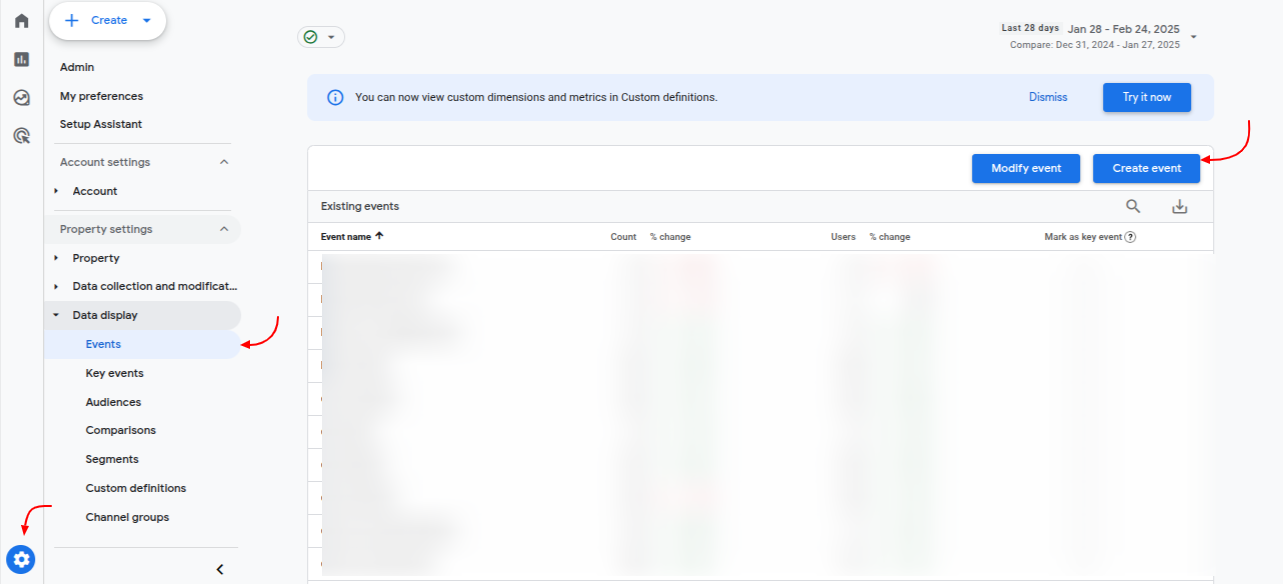
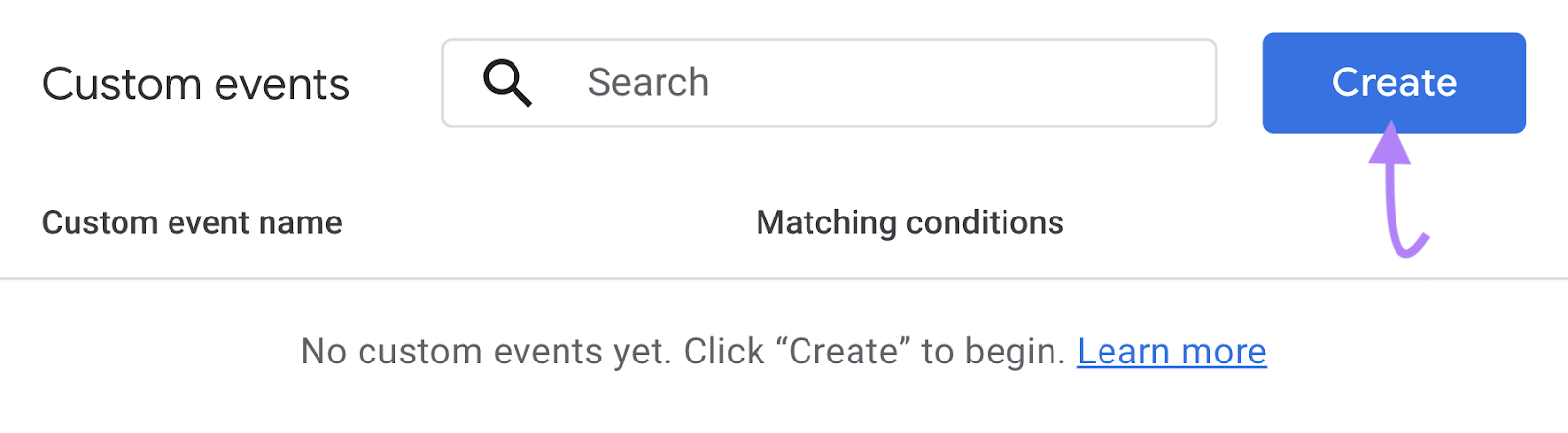
Step 1 – Open Google Analytics 4 and navigate to the gear icon. Click ‘Events’ and then click ‘Create event’. You will see a screen like the one below.
Click “Create.”
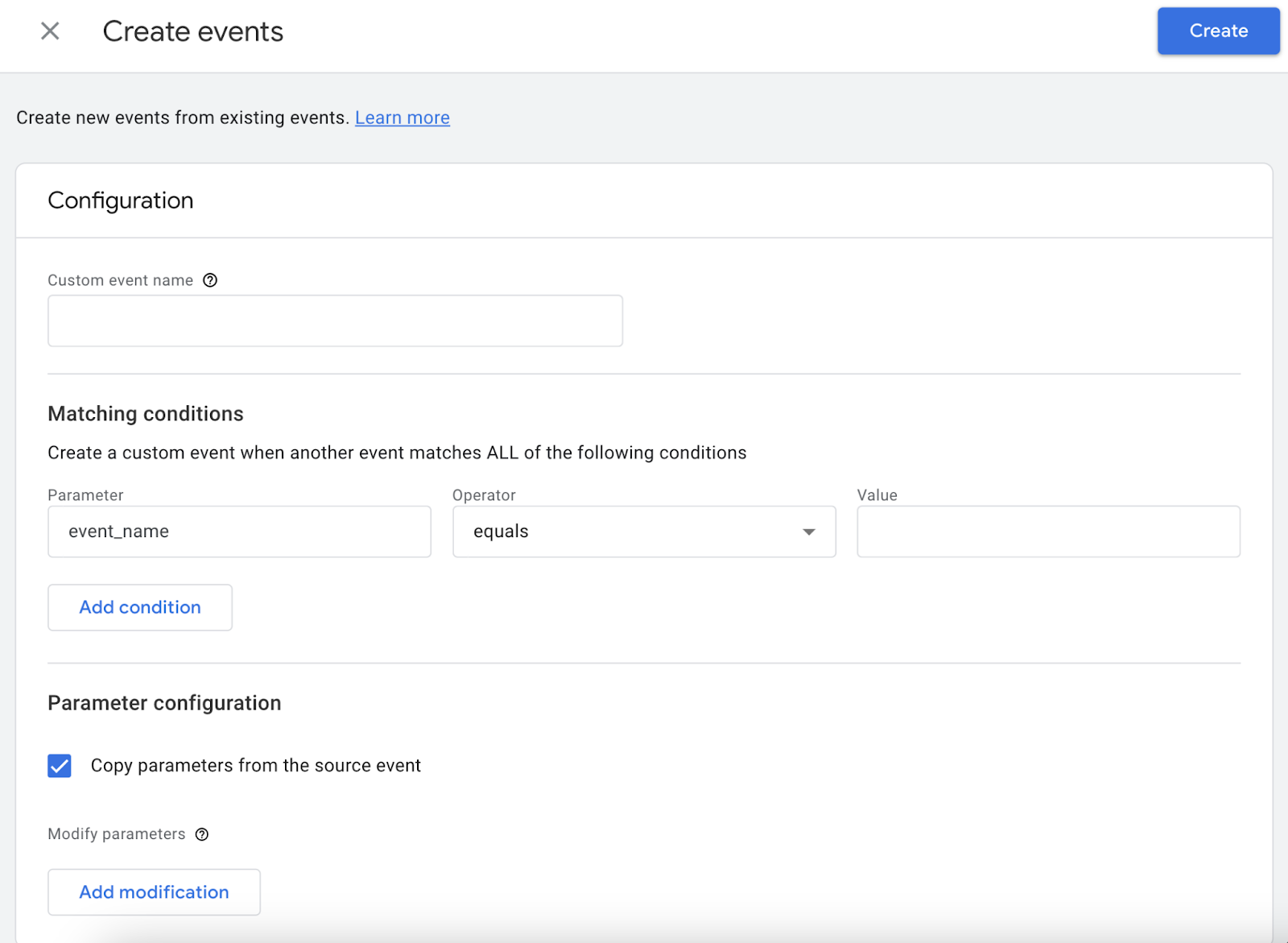
Step 2 – On the next screen, give a name to the custom event you wish to track and configure all the parameters you wish to add.
Step 3 – Save the new event you have created. It is important to note that this custom event will only start when an event takes place on the website or app you are tracking that meets every single condition that have been specified.
That’s it! Your event count tracking mechanism is ready to go. The next step is ensuring that the event is accurately tracked. For this, it’s important to understand some of the best ways to ensure a higher, and more importantly accurate, Google Analytics event count.
Best Practices for Tracking Event Count in Google Analytics
Getting a high event count while analysing events can help businesses understand how informed customers behave online, what triggers them to take an action and how these triggers can be replicated across multiple checkpoints. Take a look at some practices that have helped businesses across domains:
Identify actions that are important to users: The first step is to identify the actions that are the most vital in taking users to your app or website. This includes important clicks, form submissions or video views. When you are setting up event tracking, don’t forget to use meaningful and descriptive event categories, labels and actions that enable data analysis at a later period.
Use custom metrics and dimensions: A default Google Analytics 4 event count does not necessarily measure all the objectives critical to your campaign. Using custom metrics and events can help track additional data such as maybe product categories or user roles.
Do sufficient A/B testing: Things you know in theory might not yield exactly the same results you imagine. The only way to test their accuracy will require ample testing using real-world customers. Using A/B testing tests two or more versions of your app or website to measure user behaviour impact. This allows you to identify design changes that are the most effective, which could lead to higher event counts.
Top 4 Mistakes to Avoid When Setting Up Event Tracking
When setting up event tracking for your website or app, accuracy is everything. Poor implementation leads to misleading reports, wrong decisions, and wasted marketing spend. While no setup is perfect, avoiding these common mistakes ensures your event data remains reliable and actionable.
Don’t forget to add event tracking code to every relevant element:
Missing tags on key buttons, forms, or interactions leads to incomplete data and underreported engagement.
Avoid generic event names:
Using vague labels like click, button, or interaction provides no real insight. Use descriptive names such as form_submit, add_to_cart, or demo_request so data is meaningful.
Define clear goals and milestones:
Track not just clicks but progress indicators such as scroll depth, video completion, checkout steps, and micro-conversions that show user intent.
Regularly analyze and monitor event data: Event tracking is not a “set and forget” process. Continuous review helps detect anomalies, drop-offs, or tracking issues early.
Conclusion:
Tracking event counts in Google Analytics is a crucial step for businesses looking to gain deep insights into user behavior and optimize their website or app’s performance. By effectively setting up event tracking and using data-driven metrics, businesses can better understand how users interact with their platforms, improve conversion rates, and refine their marketing strategies.
To make the most of this tracking and ensure optimal results, you might consider enlisting expert support. GA4 Consulting Services can help you properly set up and customise your Google Analytics 4, ensuring accurate tracking of event count metrics tailored to your business goals. Additionally, technical SEO services can further enhance your website’s performance, ensuring that your event tracking data feeds into broader SEO strategies for improved rankings and more actionable insights.
Frequently Asked Questions (FAQs)
What is the difference between default and custom events in GA4?
In Google Analytics 4, a default event is a user interaction the platform tracks by default such as clicks or page views. On the other hand, a custom event is a specific action or event a user defines and tracks by themselves for new insights into unique customer behaviours. This helps your understand unique customer actions.
How can event count improve website performance analysis?
An event count improves website performance analysis by giving deep insights into specific actions or events beyond just page views or video performance. This helps businesses like yours to identify points of friction, high engagement and new opportunities for optimisation. In the end, this leads to a stronger understanding of user behaviour while navigating and interacting with your app or website and shows you where to improve. As a result, you get a better understanding of how users behave on your site and how you can improve.
Are they any tools that can help automate event tracking?
There are several tools to help users with tracking event counts such as Google Analytics 3, Amplitude, Usermaven and Heap, among others. Each of these platforms allows you to capture user engagement without too much implementation of extensive manual code.
What are some advanced use cases for event tracking?
Advanced use cases include predictive analytics, anomaly detection, cohort analysts, mapping user journey even through complex interactions and more.
Sarvesh Bagla is an enterprise SEO expert and industry leader who has driven transformational digital growth for India’s top brands across the BFSI, Healthcare, Automotive, and ECommerce industries. As the Founder and CEO of Techmagnate, he leads large-scale organic search strategies and performance marketing campaigns for businesses looking to succeed in today’s AI-driven search landscape.
A strong advocate for thought leadership, Sarvesh is deeply involved in SEO evangelism and regularly contributes to industry discussions through LinkedIn, webinars, and CMO roundtables. His focus today is on helping brands prepare for an AI-first SEO future (AEO, GEO) and strategies for Large Language Models (LLMs) at the core.
Get the most valuable search related insights about leading brands, trending keywords, search volumes, fastest growing categories, city-level insights and much more!
It has come to our notice that fraudulent job offers are being circulated on the internet through messaging apps like WhatsApp and Telegram, which falsely claim to be from Techmagnate. We take this matter seriously and would like to caution all candidates to be wary of such postings.
Please Note That –
We do not charge any fees/security deposit/payment from candidates, irrespective of the professional experience they hold, for job applications or interviews
Official communication channels include our website and verified social media accounts, primarily LinkedIn.
Kindly double-check the domain name – @techmagnate.com – in the email address
We follow a transparent and ethical approach for hiring/onboarding supported by proper documentation.
Ensure that you only apply through verified channels to avoid being scammed. We also recommend that you exercise caution when sharing personal information or financial details with any job posting or recruitment agencies claiming to represent us.
We want to ensure that potential candidates interested in joining Techmagnate have a safe and positive experience.
If you find that someone that fits the description above has reached out to you, please notify us immediately at jobs@techmagnate.com.
 Important Alert:
 Important Alert:
















 6th Feb | Invite-only


